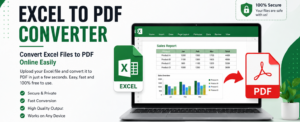


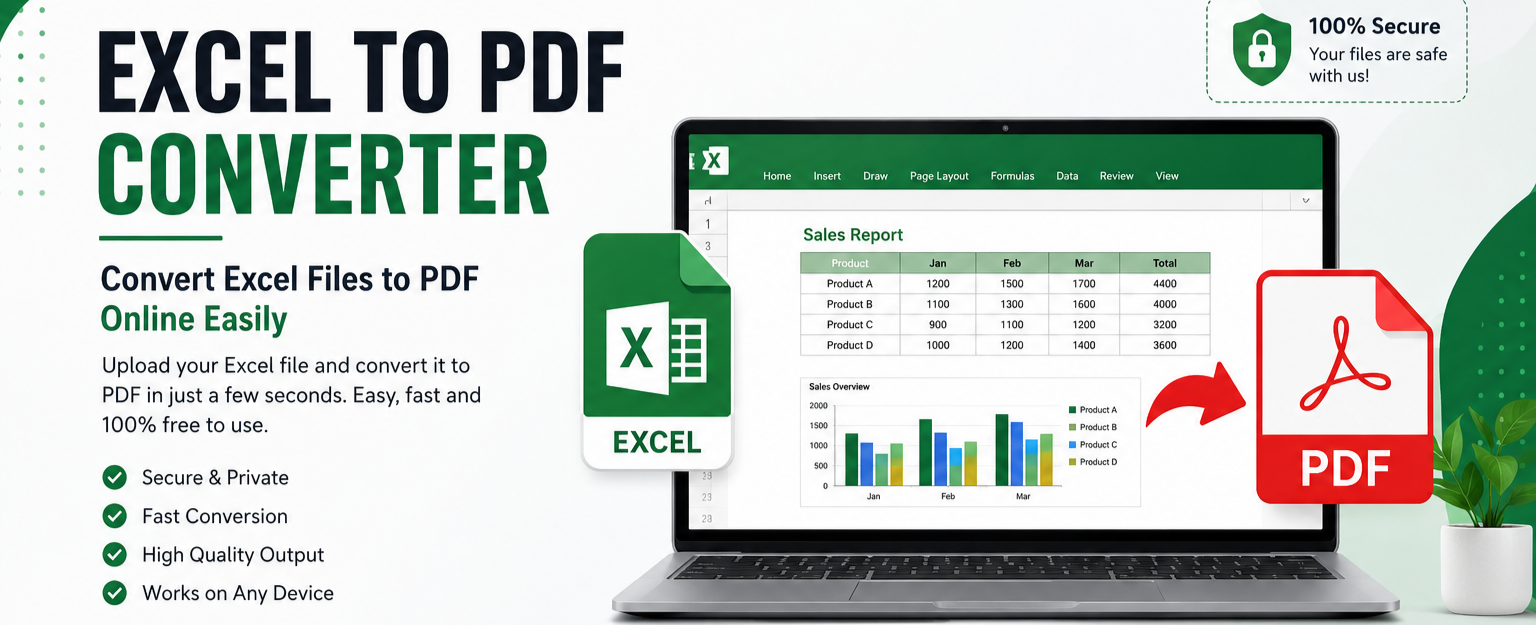
Working with Excel files is common for students, employees, business owners, accountants, teachers, and many other professionals. .
PDF & Excel Online Converter
Fast, 100% Free & Private Client-Side Conversion Tool
PDF to Excel and Excel to PDF Converter: Complete Online Guide
Working with digital documents frequently requires transforming fixed-layout reports into flexible data sheets or packaging finalized spreadsheets into clean, print-ready documents. Our online PDF to Excel and Excel to PDF converter is engineered to deliver fast, accurate, and completely private document conversions directly inside your web browser.
What is PDF to Excel Conversion?
A PDF to Excel converter extracts tabular structures, numeric rows, text headers, and data cells embedded in Adobe Portable Document Format (PDF) files and reconstructs them into editable Microsoft Excel (.xlsx) or CSV spreadsheets. This eliminates hours of tedious manual data entry, copy-pasting, and reformatting errors.
What is Excel to PDF Conversion?
An Excel to PDF converter takes structured workbooks, work sheets, financial statements, or inventory tables and compiles them into clean, standardized PDF files. By locking down cell dimensions, fonts, page orientations, and margins, an Excel-to-PDF transformation ensures your sheets look identical on any desktop computer, tablet, or mobile phone.
Key Benefits of this Free Client-Side Converter
- 100% Client-Side Privacy: Your sensitive invoices, tax records, and business numbers are processed purely in your browser’s local memory. No files are stored or transmitted across remote cloud servers.
- High Table Accuracy: Intelligent coordinate clustering detects column gaps and row heights to preserve table layouts.
- Multi-Sheet & Multi-Page Support: Seamlessly split multi-page PDF documents into separate Excel worksheets or convert complex multi-tab Excel workbooks into unified PDF pages.
- Mobile-Friendly Design: Responsive interface optimized for touch devices on Android, iPhone, iPad, Windows, and macOS.
How to Convert PDF to Excel Step-by-Step
- Select the PDF to Excel tab at the top.
- Drag and drop your PDF file or click Choose File.
- Choose your preferred sheet layout (e.g. Create Sheet per Page or Combine into 1 Sheet).
- Click Convert to Excel.
- Once processing finishes, click Download Excel (.xlsx).
How to Convert Excel to PDF Step-by-Step
- Select the Excel to PDF tab.
- Upload your
.xlsx,.xls, or.csvspreadsheet. - Select whether to convert all sheets or a specific tab, choose orientation (Landscape is recommended for wide tables), and set your margin preferences.
- Click Convert to PDF and instantly download your document.
Frequently Asked Questions (FAQ)
What Is an Excel to PDF Converter?
An Excel to PDF Converter is an online or offline tool that changes an Excel file into a PDF document.
Excel files normally use formats such as:
- XLS
- XLSX
- XLSM
- CSV in some conversion tools
After conversion, the spreadsheet is saved as a PDF file. The PDF can then be downloaded, shared through email, uploaded to websites, printed, or stored for future use.
For example, imagine that you have created a monthly sales report in Excel. The report contains tables, numbers, headings, and calculations. Instead of sending the Excel file to your manager, you can convert it into PDF and share the final document.
The receiver can open the PDF without needing to edit the original spreadsheet.
Why Convert Excel to PDF?
There are many reasons why people convert Excel spreadsheets into PDF files.
1. PDF Is Easy to Share
PDF is one of the most commonly used document formats. You can send a PDF through email, messaging apps, cloud storage, or other platforms.
The receiver can usually open the document without having Microsoft Excel installed.
2. Formatting Is Easier to Preserve
Excel spreadsheets can look different depending on screen size, software, printer settings, or Excel versions.
When you convert Excel to PDF, the document is generally presented as a fixed-layout file. This helps maintain the appearance of tables, headings, and other content.
3. Easy to Print
PDF files are widely used for printing documents.
If you have created an invoice, report, timetable, price list, or financial statement in Excel, converting it to PDF can make the document easier to print and distribute.
4. Professional Documents
A PDF often looks more like a finished document than an editable spreadsheet.
Businesses frequently use PDF files for:
- Reports
- Invoices
- Quotations
- Financial statements
- Sales reports
- Employee records
- Attendance sheets
- Product lists
- Business presentations
5. Reduce Accidental Editing
An Excel spreadsheet is designed to be edited. A PDF is generally used as a final version of a document.
For this reason, converting an Excel file to PDF can be useful when you want to share a completed report without encouraging people to change the spreadsheet.
How to Convert Excel to PDF Online
Using an online Excel to PDF Converter can be very simple.
The general process is:
Step 1: Open the Excel to PDF Tool
Open your online Excel to PDF conversion tool using a computer, tablet, or smartphone.
Step 2: Upload Your Excel File
Click the upload or select-file button.
Choose the Excel document you want to convert from your device.
Step 3: Start the Conversion
After uploading your spreadsheet, select the convert option.
The tool processes your Excel file and creates a PDF version.
Step 4: Download the PDF
Once the conversion is complete, download the PDF file to your device.
You can now open, print, save, or share the converted document.
The exact steps may be slightly different depending on the tool you use, but the overall process is usually similar.
Excel to PDF Converter for Students
Students frequently use Excel for assignments, marksheets, project reports, attendance records, and data analysis.
However, teachers or educational platforms may ask students to submit documents in PDF format.
Instead of manually taking screenshots of an Excel spreadsheet, students can use an Excel to PDF Converter.
For example, a student might create a project report containing:
- Student information
- Tables
- Survey results
- Charts
- Calculations
- Project data
After completing the work in Excel, the student can convert the spreadsheet into PDF and submit it.
This can make the submission process faster and more organized.
Excel to PDF Converter for Business
Businesses work with spreadsheets every day.
Employees may use Excel to create sales reports, expense sheets, inventory records, employee information, and financial calculations.
After preparing these documents, they may need to send them to clients, managers, or other departments.
An Excel to PDF Converter can make this process easier.
For example, a company may create a monthly sales report in Excel. Once the report is complete, it can be converted into PDF and sent to management.
The original Excel file can remain editable for future updates while the PDF can be used as the final report.
Excel to PDF Converter for Invoices
Invoices are another common reason for converting Excel files into PDF.
Many small businesses create invoices using Excel because it provides useful features for calculations and formatting.
After preparing an invoice, the business can convert it to PDF and send it to the customer.
A PDF invoice can include information such as:
- Company name
- Customer name
- Invoice number
- Product or service details
- Quantity
- Price
- Tax
- Total amount
- Payment information
This creates a convenient document that can be shared and printed.
Can You Convert Excel to PDF on a Mobile Phone?
Yes, depending on the tool, you can often use an online Excel to PDF Converter from a smartphone.
Modern online tools can work through mobile web browsers. You can upload an Excel file from your phone, convert it, and download the PDF.
This can be useful when you do not have access to a desktop computer.
For example, if someone sends you an Excel file through email or a messaging application, you may be able to save it to your phone and convert it into PDF using an online tool.
However, very large spreadsheets may work better on a computer, depending on the converter and your device.
Benefits of Using an Online Excel to PDF Converter
An online converter can provide several advantages.
No Complicated Software
You may not need to install additional desktop software just to convert a spreadsheet.
Fast Conversion
For normal-sized Excel files, conversion can be completed quickly.
Easy to Use
Most online conversion tools follow a simple upload-and-convert process.
Works Across Devices
A web-based converter can potentially be used on computers, tablets, and smartphones.
Convenient for Occasional Users
If you only need to convert an Excel file occasionally, an online tool can be more convenient than installing specialized software.
What Should You Check Before Using an Excel to PDF Tool?
Although converting a spreadsheet is simple, there are a few things worth checking.
Check the Spreadsheet Before Conversion
Make sure your Excel file is complete before converting it.
Check:
- Spelling
- Numbers
- Formulas
- Tables
- Page layout
- Column widths
- Row heights
- Headers and footers
Check the PDF After Conversion
Always open the converted PDF and check the final result.
Look for:
- Missing columns
- Cut-off text
- Incorrect page breaks
- Tables split unexpectedly
- Charts that do not appear correctly
- Blank pages
This is particularly important for business reports and official documents.
How to Get Better Results When Converting Excel to PDF
You can improve the final PDF by preparing your Excel spreadsheet before conversion.
Set the Correct Page Size
If you are creating a report for printing, select an appropriate page size such as A4 or Letter.
Adjust Column Widths
Make sure important text is visible and does not get cut off.
Use Print Area
If your spreadsheet contains a lot of unused cells, setting a print area can help you create a cleaner PDF.
Check Page Orientation
Landscape orientation can be useful for wide spreadsheets, while portrait orientation may work better for smaller tables.
Check Page Breaks
Large spreadsheets can become multiple PDF pages. Check where the pages will break before converting.
Is Excel to PDF Conversion Free?
Many online Excel to PDF Converter tools offer free conversion for basic use. However, features and limitations can vary between different services.
Some tools may limit:
- File size
- Number of conversions
- Advanced formatting
- Batch conversion
- Large documents
If you are using a free converter, always check its features and limitations.
For occasional conversions, a free online tool may be enough.
Excel to PDF vs Excel File: Which Is Better?
There is no single format that is always better. It depends on what you want to do.
Excel is better when:
- You need to edit data.
- You need formulas.
- You want to sort information.
- You need to perform calculations.
- You expect future changes.
PDF is better when:
- You want to share a final document.
- You want a fixed-layout document.
- You need to print the report.
- You want to submit a document.
- You do not want the original spreadsheet edited easily.
In many cases, it is useful to keep both versions. You can keep the Excel file for future editing and use the PDF as the final version for sharing.
Who Can Use an Excel to PDF Converter?
An Excel to PDF tool can be useful for almost anyone who works with spreadsheets.
Students
Students can convert assignments, project data, marksheets, and reports into PDF.
Teachers
Teachers can convert grade sheets, attendance records, schedules, and question-related spreadsheets into PDF.
Accountants
Accountants can use PDF versions of financial reports, calculations, and statements.
Small Business Owners
Business owners can create PDF invoices, quotations, product lists, and sales reports.
Office Employees
Employees can convert spreadsheets into professional reports for managers and clients.
Freelancers
Freelancers can create invoices, project reports, price lists, and other documents using Excel and convert them into PDF.
Frequently Asked Questions
What is an Excel to PDF Converter?
An Excel to PDF Converter is a tool that converts Excel spreadsheets such as XLS or XLSX files into PDF documents.
Can I convert Excel to PDF online?
Yes. Many web-based tools allow users to upload an Excel file and convert it into PDF directly from a browser.
Do I need Microsoft Excel to convert a file?
Not necessarily. Some online converters can convert Excel files without requiring Microsoft Excel to be installed on your device.
Can I use an Excel to PDF Converter on my phone?
Many online converters work through mobile browsers, allowing you to upload and convert Excel files from a smartphone.
Is the converted PDF editable?
A PDF is generally intended for viewing and sharing rather than spreadsheet editing. If you need to change formulas or spreadsheet data, it is better to keep the original Excel file.
Will formulas work inside the PDF?
The calculations should generally appear as their displayed results, but the PDF is not a replacement for an editable Excel spreadsheet. Formulas themselves are not normally used in the PDF like they are in Excel.
Can I print an Excel file after converting it to PDF?
Yes. One of the main advantages of converting Excel to PDF is that the resulting document can be easily printed.
Final Thoughts
An Excel to PDF Converter is a useful tool for anyone who works with spreadsheets and needs to create a shareable document.
Excel is excellent for editing data, creating formulas, organizing information, and performing calculations. PDF, on the other hand, is convenient for sharing, printing, submitting, and storing completed documents.
Instead of manually copying spreadsheet information or taking screenshots, you can use an Excel to PDF Converter to create a PDF version of your Excel file.
Whether you are a student preparing an assignment, an employee creating a business report, an accountant preparing financial information, or a business owner creating an invoice, an online Excel to PDF Converter can make the process faster and easier.
For the best results, always review your Excel spreadsheet before conversion and check the final PDF afterward. Make sure that tables, columns, charts, page breaks, and important information appear correctly.
If you frequently work with Excel files, keeping a reliable Excel to PDF Converter available can save time and make document sharing much more convenient.
Table of Contents
Toggle